

Last Updated on October 6, 2026 by maryamnawaz
If you are trying to remove a Gmail profile from a Huawei phone, the process is usually simpler than it looks. For a quick reference, start with how to log out gmail account in huawei, then follow the steps below. On most Huawei devices, Gmail is tied to the Google account stored in system settings, so the clean logout is often done there rather than inside the app alone.
Why Huawei Handles Gmail Sign-Out Differently
On Android-based phones, Gmail is not always a traditional “sign out” app. Instead, it works through the Google account added to the device. That is why many users search for how to log out gmail account in huawei and find that the answer involves both Gmail and the phone settings. If you only switch accounts inside Gmail, your old account may still remain on the device. To fully disconnect it, you need to remove the Google account from Huawei settings. Elsewhere on the site: How to set up a paypal account.
Step 1: Check the Active Gmail Account
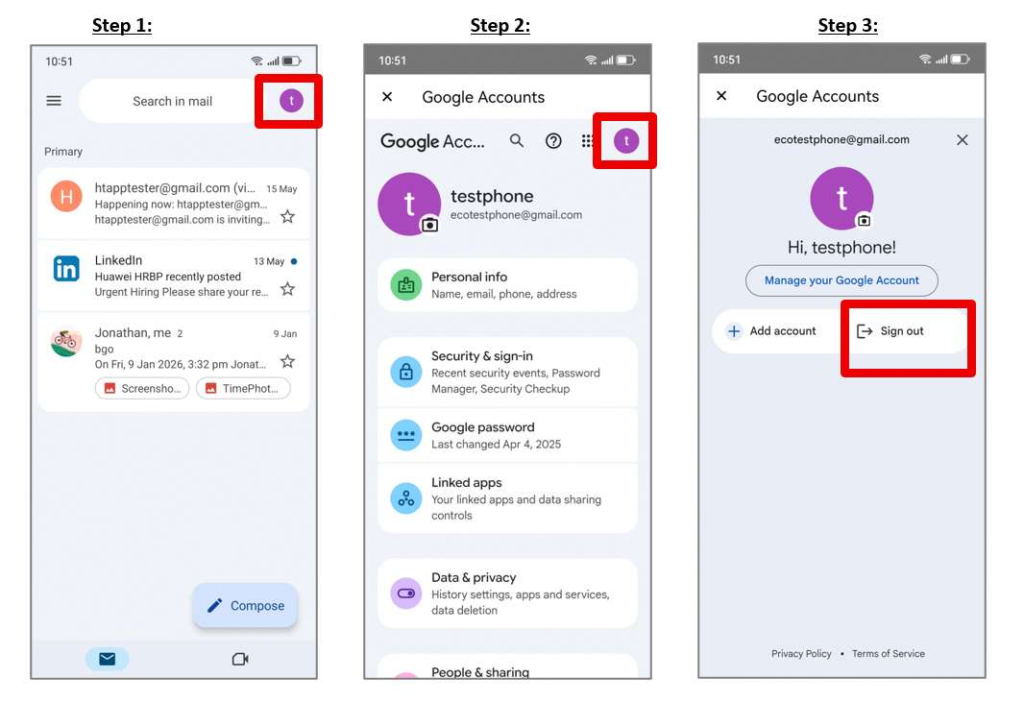
Open the Gmail app on your Huawei phone.
Tap your profile picture in the top-right corner.
Review the account that is currently active.
If you only want to switch inboxes, choose another account here.
If your goal is a full logout, continue to account management. This is the simplest answer to how to log out gmail account in huawei when the app itself does not show a clear sign-out button.
Step 2: Open Google Account Management
From Gmail, tap your profile picture again.
Select Manage your Google Account.
Tap the account avatar if the page opens to a different profile view.
Look for a sign-out option if your version shows one.
Some Huawei phones display a direct sign-out path, but many do not. If that happens, do not stop there. The account still needs to be removed from the device settings to fully log out. Also worth reading: Huawei Netflix Setup.
Step 3: Remove the Account from Huawei Settings
Open Settings on your Huawei phone.
Go to Users & accounts.
Tap Google.
Select the Gmail address you want to remove.
Tap Remove, then confirm again when prompted.
This is the most reliable method for how to log out gmail account in huawei. Once the Google account is removed, Gmail no longer stays connected to that profile on the phone.


What To Do If Gmail Still Shows the Account
Restart the phone after removing the account.
Return to Settings > Users & accounts > Google and confirm the account is gone.
Open Gmail again and check whether the inbox list has updated.
If needed, clear the Gmail app cache from the app info page.
If you share the phone with someone else, also check whether Chrome, Drive, or Contacts are still synced to the same Google profile. A full account removal usually disconnects all of them at once, which makes it the safer choice for shared devices or resale prep.
When You Want a Cleaner Device Reset
Before handing the phone to another person, remove the Google account first, then verify that Gmail no longer opens to the old inbox. If you want a visual walkthrough while you follow the menu path, open how to log out gmail account in huawei and compare the steps with your screen. This helps when Huawei menu labels vary slightly by EMUI or HarmonyOS version.
If the account still appears after removal, open Settings again, revisit Users & accounts > Google, and delete the leftover profile before reopening Gmail.

Apart from that if you want to know about Maximizing Revenue from Free Mobile Apps then please visit our Tech Category.